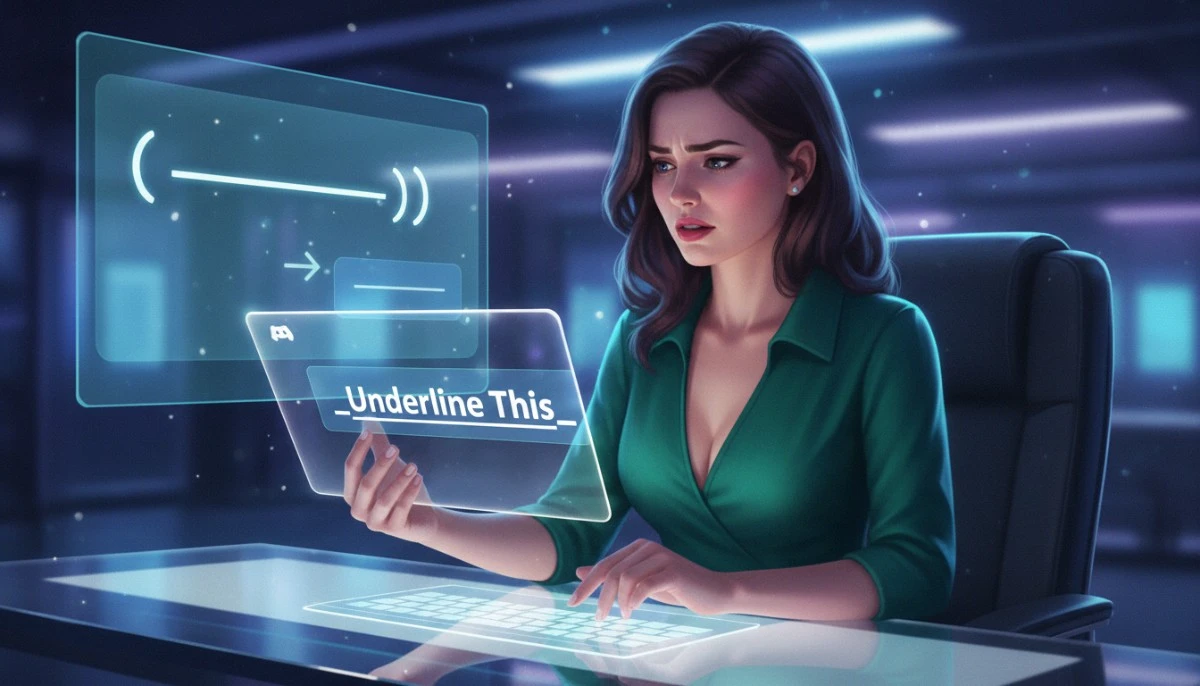
We all spend way too much time on Discord. Whether you are running a massive community server, organizing a weekend gaming session, or just hanging out in a private group chat, getting your message noticed is surprisingly hard. The chat moves fast. If you drop a massive wall of plain text into a busy channel, nobody is reading it. They will scroll right past it.
You need formatting to break up the visual noise.
But Discord is notoriously stubborn. Unlike a standard word processor, there is no helpful little ribbon at the top of the screen with a ‘B’, ‘I’, and ‘U’ icon. You just get a blank text box staring back at you. If you don’t know the secret keyboard language, you are stuck with boring, uniform text.
Luckily, that secret language is incredibly easy to learn. It is called Markdown, and you only need to memorize one specific character to unlock the underline feature. You don’t need a Nitro subscription, and you don’t need to install any third-party plugins.
Here is the exact shortcut, how to use it without messing up your sentences, and how to stack it with other formatting tricks to make your announcements impossible to ignore.
The One-Step Shortcut
You just need the underscore key.
To underline any text in Discord, you place two underscores immediately before your word, and two underscores immediately after it.
It looks exactly like this: __your text here__
Once you hit enter, those underscores instantly vanish, and your text appears perfectly underlined in the chat. That is it. That is the entire one-step guide.
Depending on your keyboard layout, finding that underscore can be a slight nuisance. On standard QWERTY keyboards, it is hiding up next to the zero. You have to hold Shift and hit the dash key. If you forget to hold Shift, you just end up with --this--, which does absolutely nothing except make you look like you are trying to invent a new type of emoji.
Stacking Your Formatting (The Sandwich Method)
What if underlining isn’t enough? What if you are a server admin, you are dropping the new community rules for the week, and you need people to actually pay attention to a specific warning? You need the bold-underline combo.
Discord’s markdown parser is actually pretty smart, but it can get confused if you nest the symbols in the wrong order. Think of it like building a sandwich. The formatting tags need to mirror each other perfectly from the outside in.
To get a bold and underlined word, you type two underscores, then two asterisks, your text, two asterisks, and finally two underscores to close it out.
__**Pay Attention**__
If you cross the streams and type __**Pay Attention__**, the system might glitch out. It will usually figure it out, but sometimes it leaves the asterisks hanging visible in the chat. Nobody wants to look like a formatting amateur. Keep your tags symmetrical.
Want to add italics to the mix? The exact same rule applies. It is two underscores, then one asterisk.
__*Sneaky text*__
The Mobile Nightmare
Let’s address the elephant in the room. Doing this on a desktop keyboard is pure muscle memory. Doing this on a smartphone is a test of your patience.
When you are typing on an iPhone or an Android device, getting to the underscore requires flipping to the secondary punctuation keyboard. Typing two of them, switching back to the alphabet keyboard, typing your word, and then switching back to the punctuation keyboard to close it out? It feels like you are defusing a bomb just to emphasize a single word.
Unfortunately, Discord’s mobile app does not have a native highlight-and-format menu pop-up like Apple Messages or standard email apps do. You still have to manually type the markdown characters.
If you are managing a server strictly from your phone, I highly recommend setting up a text replacement shortcut in your phone’s system settings. You can program your phone so that typing a rare letter combination (like “uuu”) automatically expands into __ __ with your cursor resting perfectly in the middle. It will save you from spending half your commute just trying to format a single announcement.
The Unspoken Rules of Underlining
Now that you have this power, you need to exercise some restraint. There is a very specific etiquette to Discord formatting.
If you underline every single message you send, you become the digital equivalent of that person who talks with a megaphone in a tiny room. People will just end up muting you and moving on. The formatting loses its impact when it becomes the default.
Save the underline for specific, high-value scenarios:
Crucial Deadlines: Emphasizing a specific time or date in an announcement channel so nobody can claim they missed it.
Navigation: Highlighting the names of specific roles or channels you are referencing (e.g., “Please check the pinned messages in the general-rules channel”).
Comedic Timing: Adding a dramatic, deadpan pause to a joke in a casual chat. Sometimes underlining a single, mundane word is the funniest way to respond to a chaotic conversation.
When you use it sparingly, it actually carries weight. It draws the eye exactly where you want it to go, cutting through the endless scrolling of a busy server. Just grab those underscores and start typing.