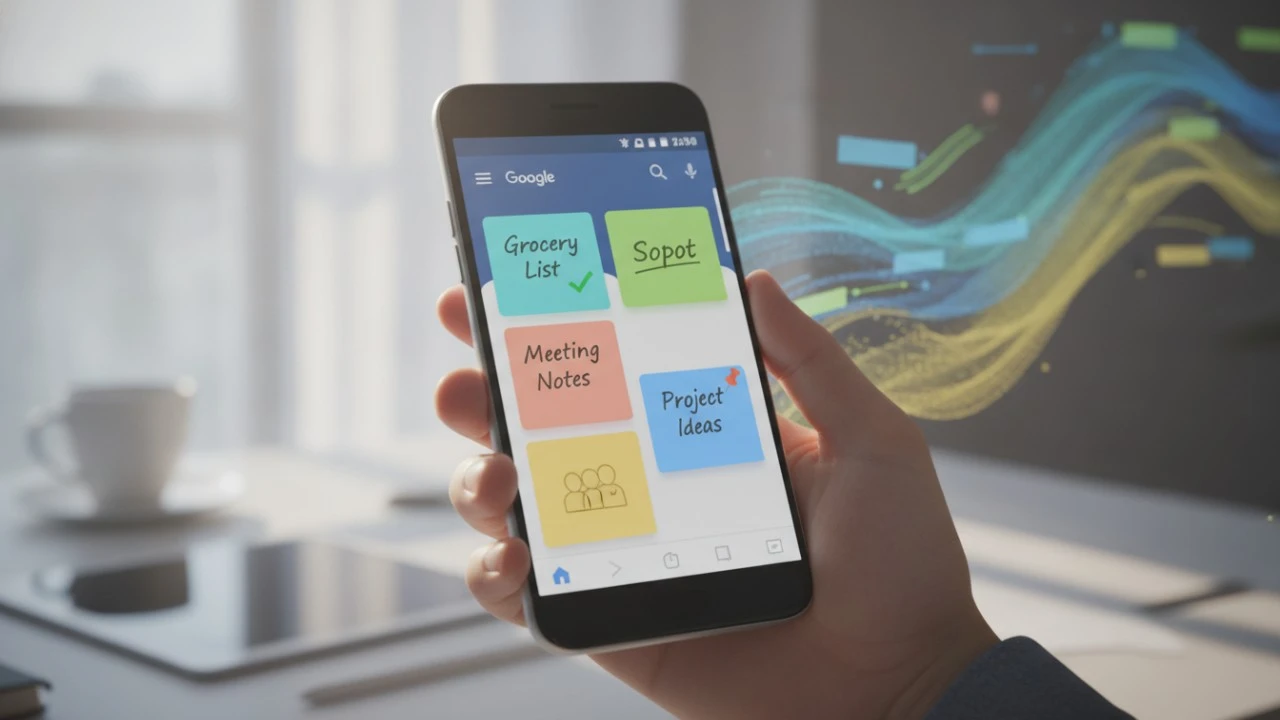
I’ve always loved Google Keep because it stays completely out of my way. You pop it open, jot down whatever is floating around in your brain, and you get on with your day. There are no databases to build. No complicated folder trees to navigate.
That raw, stripped down simplicity is still a massive part of its charm. But honestly? It’s no longer the actual reason I consider Keep the absolute best note taking app on Android.
SIMPLICITY IS THE HOOK, NOT THE WHOLE STORY
Before we get into the wild new AI features that Google Keep can pull off, I still have to tip my hat to its clean design.
Unlike Evernote or OneNote, Keep never forces me to think about where a note belongs or how it should be formatted. I never have to agonize over creating a specific notebook, configuring a template, or choosing a page type just to write a quick thought down. I open the app, tap the little plus button, type my note, and close it.
Sure, there are a dozen note taking apps that look way more powerful on paper. But when I just need to capture my everyday life, I always gravitate back to the app that demands zero brainpower.
LETTING GEMINI DO THE HEAVY LIFTING
Here is where Google Keep has quietly morphed into a powerhouse.
I constantly use Gemini to brainstorm. I use it to map out travel plans, build absurdly specific packing lists, find new recipes, or just organize a chaotic brain dump. Back in the day, saving that goldmine of information was annoying. You had to highlight the AI’s response, copy it, jump over to Keep, paste it in, and format it manually.
Not anymore. Now, you can literally just ask Gemini to turn its answer directly into a Keep note.
That one tiny shortcut completely rewires how I use both apps. If Gemini generates a killer camping checklist, I blast it straight to Keep with a tap. If I’m bouncing ideas around and a brilliant plan forms, I can save it instantly without ruining my workflow. AI chats are fantastic for finding answers, but that information vanishes quickly into the abyss of your chat history. Sending the good stuff directly to Keep gives it a permanent home where I can pin it, label it, and tweak it later.
THE APP YOU BARELY EVEN NEED TO OPEN
This is the real magic trick. Thanks to how deeply Gemini is baked in, I no longer think of Keep as an app I have to manually open and scroll through.
As long as I can vaguely remember the title of my note, I just ask Gemini to fetch what I need. Let’s say I’m standing in the middle of a hardware store and can’t remember if I already have painter’s tape at home. I can just say, “Get me my garage inventory from the Household note.” Bam. The information pops up instantly. No mindless scrolling. No hunting through endless checklists.
This gets ridiculously useful when you have massive notes. If I have a giant “Japan Travel” note crammed with flight numbers, hotel addresses, and a 14 day itinerary, I don’t have to sift through it. I just tell Gemini, “Pull up my Day 6 details and my flight info from the Japan note.” It extracts exactly what I asked for, leaving the rest of the clutter behind. Keep practically feels invisible now.
STRINGING COMMANDS TOGETHER LIKE A PRO
Pulling up a note is cool, but stacking multiple commands together is where you actually feel like you’re living in the future.
I can tell Gemini to find a specific piece of information inside a Keep note and immediately act on it. I can say, “Find my Day 6 itinerary from the Japan note and text it to Jack.” I skip the entire process of opening the note, copying the text, switching to my messaging app, finding Jack’s thread, and pasting it in.
You can apply this to almost anything. You can ask Gemini to find a restaurant address buried in a vacation note and instantly start navigating there. You can have it pull a grocery list and fire it off to your partner on WhatsApp.
Google Keep is still undeniably the simplest note taking app on Android, and I really hope Google never messes with that core formula. But that simplicity is just the surface now. Gemini has fundamentally changed how I interact with the information I save, turning a basic sticky note app into a wildly powerful personal assistant.